Vivo X200 Heating Issue During Gaming How to Solve
|
Getting your Trinity Audio player ready...
|
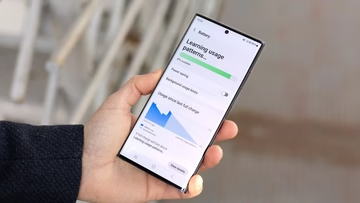
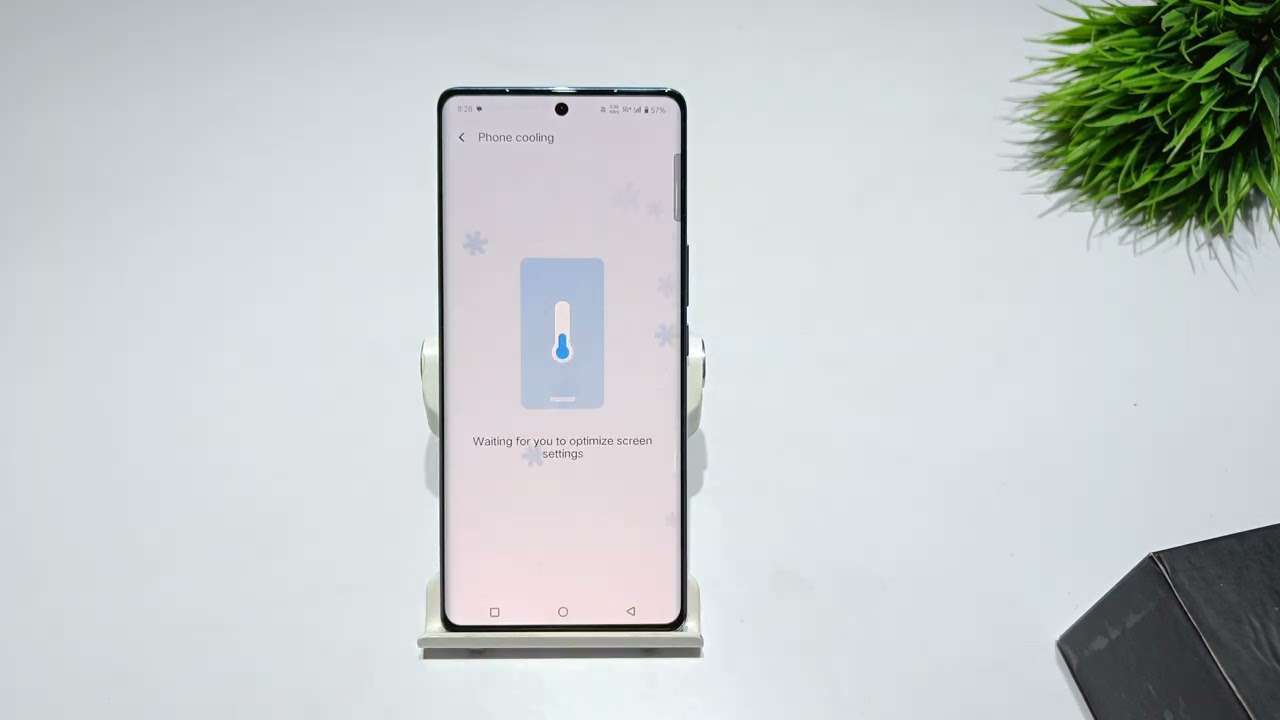
Many Vivo X200 users have reported that their phones get hot during extended gaming sessions. While some warmth is normal when the processor is working hard, excessive heat can affect performance, battery life, and even cause discomfort while holding the phone. Understanding the causes of overheating and applying the right solutions can help you enjoy smooth gaming without worrying about heat.
Common Causes of Heating During Gaming
- High Processor Load
- Graphics-intensive games demand a lot from the CPU and GPU.
- Continuous heavy usage can make the processor generate excessive heat.
- Poor Ventilation
- Playing games while the phone is inside a case that traps heat can increase the temperature.
- Gaming in a hot environment without airflow also contributes to overheating.
- Background Apps Running
- Multiple apps running in the background can increase CPU usage.
- Social media, streaming apps, or system processes may add extra load during gaming.
- High Screen Brightness
- Bright displays consume more power and produce additional heat.
- Using maximum brightness for long periods accelerates warming.
- Battery Stress
- If the battery is aging or has degraded, it may overheat during heavy gaming sessions.
- Charging while gaming can further increase temperature.
- Software or Firmware Issues
- Bugs or unoptimized game versions can cause excessive resource usage.
- Outdated system software may fail to manage heat efficiently.
Effective Ways to Solve Heating Issues
- Take Breaks During Long Gaming Sessions
- Avoid playing continuously for hours.
- Short breaks allow the processor to cool down and reduce overall temperature.
- Lower Graphics Settings in Games
- Reduce frame rates, resolution, or graphics quality to reduce GPU and CPU load.
- Most games offer a “Performance Mode” that prioritizes smoothness and battery life over visual effects.
- Avoid Charging While Gaming
- Charging adds heat, so play only on battery or pause charging during intensive sessions.
- Charging adds heat, so play only on battery or pause charging during intensive sessions.
- Remove Phone Case During Gaming
- Cases can trap heat and prevent dissipation.
- Playing without the case improves airflow and cooling.
- Close Background Apps
- Exit unnecessary apps before gaming.
- This frees up RAM and reduces CPU load, helping to control temperature.
- Adjust Screen Brightness
- Lower the screen brightness to a comfortable level.
- Automatic brightness or adaptive brightness can help balance visuals and heat.
- Keep Your Phone in a Cool Environment
- Avoid direct sunlight or hot rooms while gaming.
- Cooler ambient temperatures help the phone manage heat more effectively.
- Update Software and Games
- Ensure your Vivo X200 is running the latest firmware.
- Update games to the latest version, as developers often release optimizations that reduce overheating.
- Use Built-In Phone Optimization Tools
- Vivo phones often include game mode or system optimization features.
- Enable “Game Mode” to prioritize performance and manage heat efficiently.
When to Seek Professional Help
If your Vivo X200 continues to overheat despite trying all these solutions:
- The battery may be degraded or defective.
- Internal components could be malfunctioning.
- Thermal paste or heat management systems may require inspection.
Visiting an authorized Vivo service center ensures safe diagnosis and repair. Avoid DIY repairs to prevent further damage.
Conclusion
Moderate heating during gaming is normal for the Vivo X200, but excessive heat can be managed with a few simple steps: lowering graphics settings, closing background apps, adjusting brightness, taking breaks, and avoiding charging while gaming. Following these practices not only prevents overheating but also prolongs battery life and maintains smooth gaming performance.
Also Read: https://skipper.pk/where-can-i-find-budget-friendly-laptops-for-students-in-pakistan/
Also Read: https://skipper.pk/vivo-x200-not-charging-properly-causes-and-fixes-2/
About The Author